Watch: Video Tutorial
Overview
Once you have created your student licenses, you need a way to distribute login details to your students and track which student is assigned to which "Active Animal" username. Use the Export feature to manage this process efficiently.
Step 1: Access the Export Menu
Navigate to the Valor Sign-In Page and log in.
Select My Organisation from the left-hand toolbar.
Scroll to the bottom of your organization member list.
Click the Export button located next to "Add Members".

Step 2: Distributing Credentials to Students
You have two primary ways to provide students with their login information:
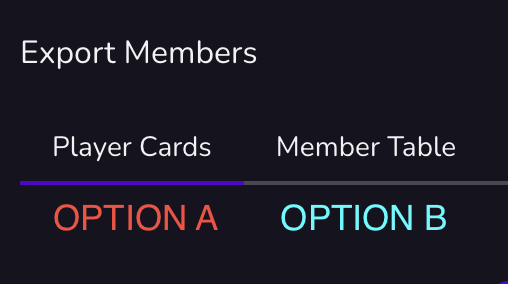
Option A: Player Cards (Visual/Physical)
Best for in-classroom use or direct messaging.
Select Print Player Cards from the export options.
You can:
Print and Laminate: Hand these to students for use during every session.
Save as PDF: Take screenshots of individual cards to email or message to students.
Option B: Member Table (Data Tracking)
Best for teachers managing large cohorts across Excel or Google Sheets.
Select Export to CSV.
Open the file in your preferred spreadsheet software.
Manually add a column for "Student Real Name" next to the "Valor Username".
Note: This allows you to track ownership privately without uploading sensitive student data to the platform.
Teacher Strategy Tip
Using the Member Table export is highly recommended for schools with multiple teachers. It ensures that even if a student forgets their "Active Animal" alias, you have a master offline record to quickly identify their account and get them back to training.
Support Resources
Technical Assistance: contact@valoresports.com
Onboarding Portal: https://valoresports.com/onboarding-support/
Was this article helpful?
That’s Great!
Thank you for your feedback
Sorry! We couldn't be helpful
Thank you for your feedback
Feedback sent
We appreciate your effort and will try to fix the article