Activating or Deactivating Games in Your Organization
Organization admins can control which games are available to their organization at any time. Activating a game makes it available to teachers and students, while deactivating it removes access to that game’s content.
Follow the steps below to manage your organization’s games.
Step 1: Open Your Organization Settings
From anywhere in the platform:
In the sidebar, click My Organization.
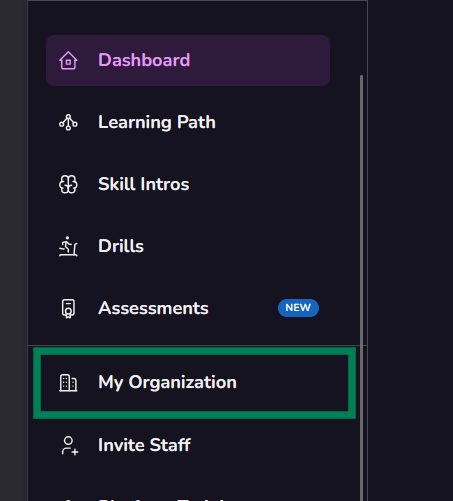
My Organization - Sidebar Menu
Step 2: Locate the Organization Games Section
Scroll down to find the Organization Games section.
This section shows all games currently active for your organization.
Click Update Games to manage your available games.
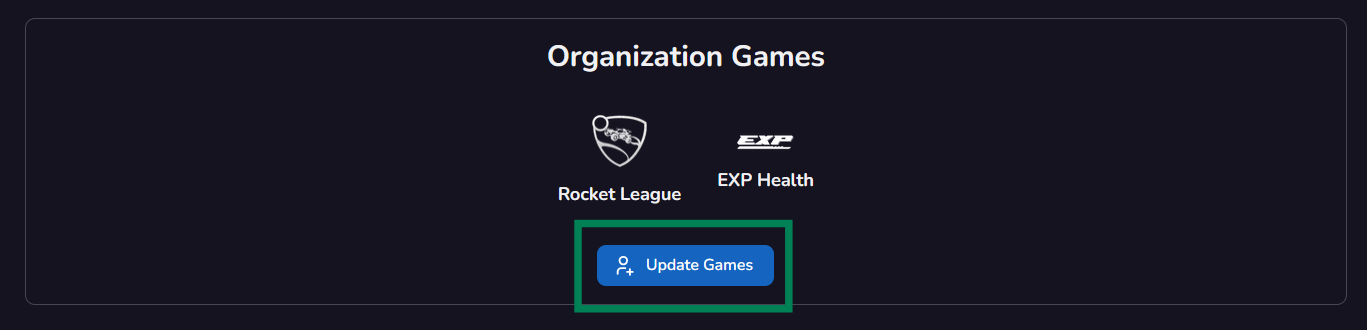
Organization Games Section
Step 3: Activate or Deactivate Games
The previous step will open a popup where you can select which games should be active.
Select the games you want to activate.
Unselect the games you want to deactivate.
Confirm your selection.
Once saved, your changes are applied immediately.
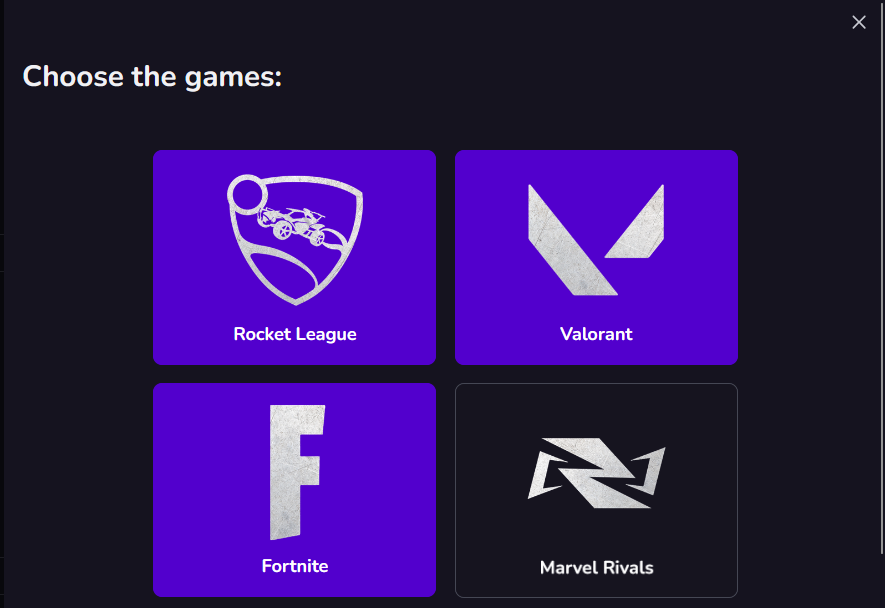
Choose Organization Games Popup
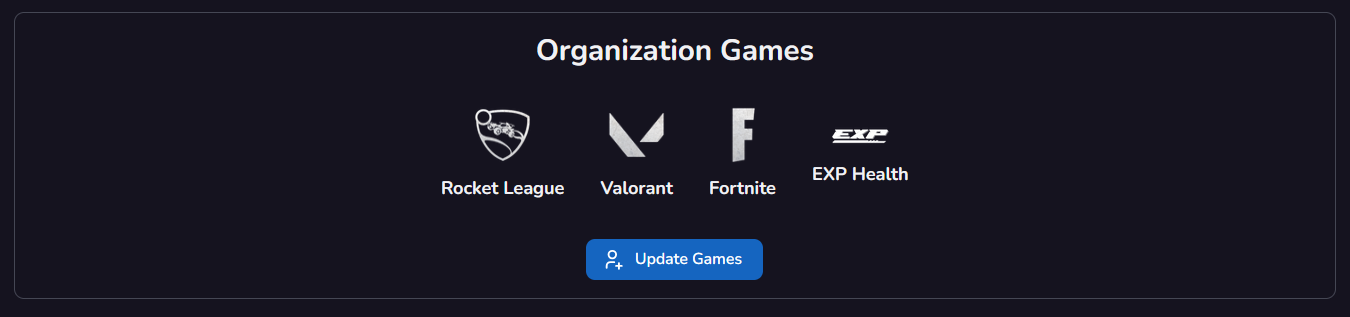
Organization Games Section with updated games
Step 4: Student now have access to the updated games
Your student now have access to the new game and can select the game they want to train from the sidebar
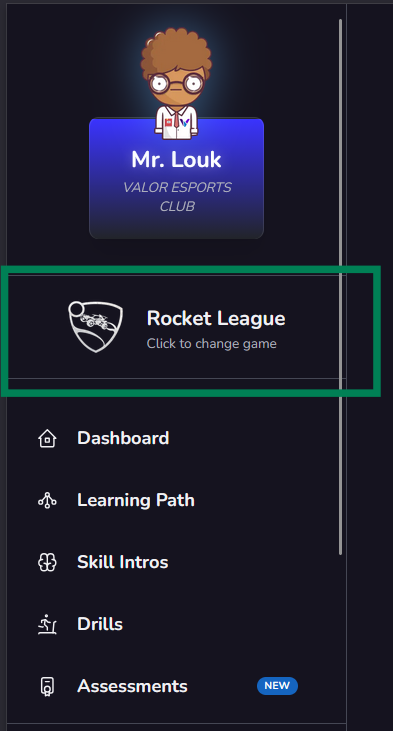
Student Game Selection
✅ That’s it!
Your organization’s games are now updated. Activated games will be available across the platform, while deactivated games will no longer be accessible to your organization.
Was this article helpful?
That’s Great!
Thank you for your feedback
Sorry! We couldn't be helpful
Thank you for your feedback
Feedback sent
We appreciate your effort and will try to fix the article