Watch: Video Tutorial (1min)
Step 1: Accessing the Organization Menu
To manage your licenses, you must first navigate to your administration dashboard.
Go to the Valor Sign-In Page and log in.
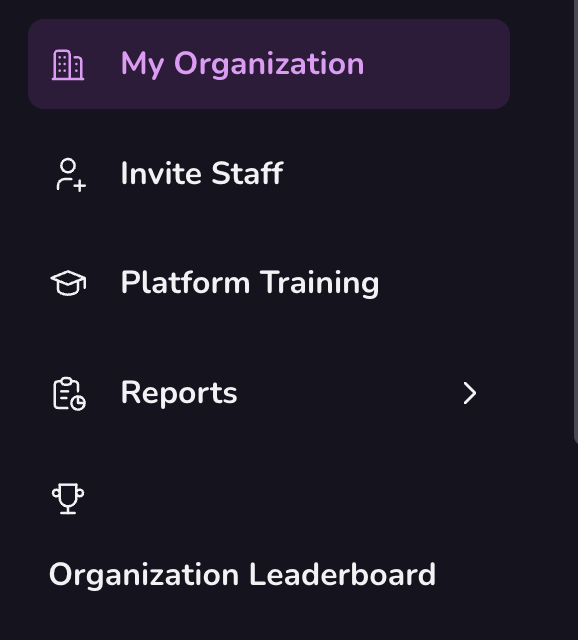
Locate the left-hand toolbar and select My Organisation.
On this page, you will find sections for user sign-ins, adding players, and exporting player username to manage distribution.
Step 2: Adding New User Licenses
You can generate sign-ins for your students individually or in bulk.
Click the green Add Members button.

Choose your method:
Single License: Click + Add One Player
Multiple Licenses: Click + Add More. Use the toggle or your keyboard to set the number of licenses needed.
Click Add to prepare the licenses.
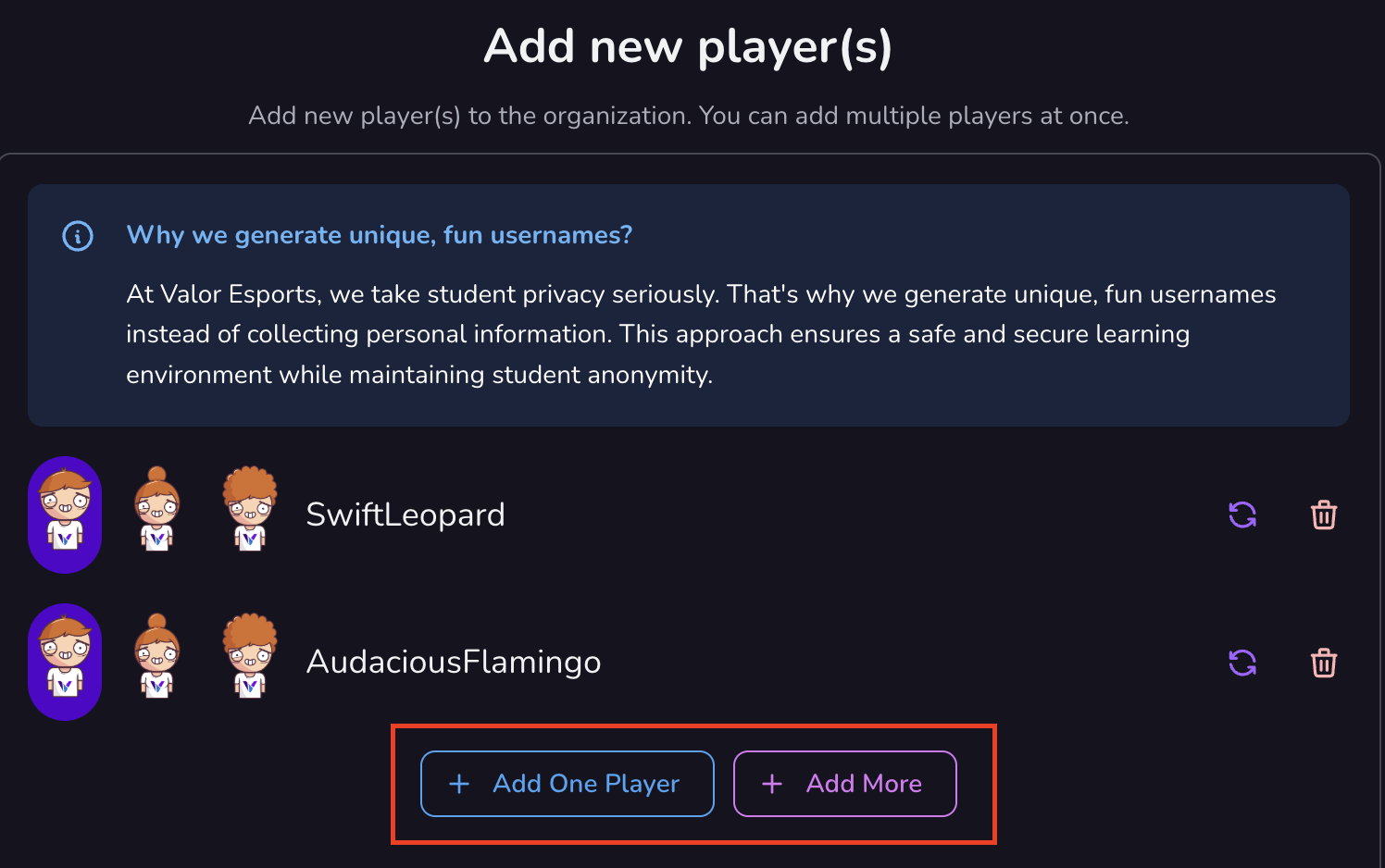
Finalize the process by clicking Create Players at the bottom (indicated by the tick icon) to move them into your usable license pool.

Step 3: Customizing Usernames for Privacy
To adhere to strict international data privacy laws, Valor uses non-identifiable default names (e.g., "Active [Animal]"). Schools are encouraged to change these to internal IDs that only the teacher can identify.
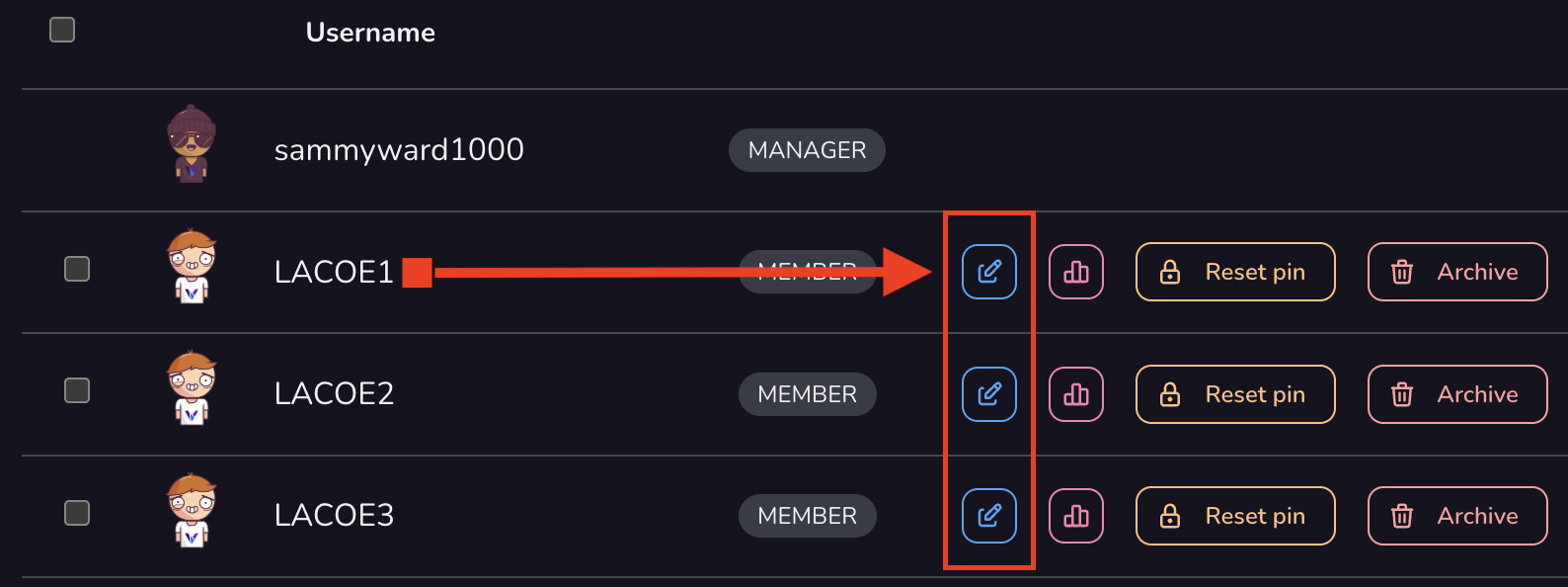
Locate the license you wish to adjust.
Click the Blue Pencil Button to edit the username.
Enter your school’s specialized student license numbers or internal identifiers.
Save your changes.
Note: This ensures students are identifiable to you, but remain anonymous to Valor and third parties.
Support Resources
Technical Assistance: Reach out to us via email at contact@valoresports.com.
Was this article helpful?
That’s Great!
Thank you for your feedback
Sorry! We couldn't be helpful
Thank you for your feedback
Feedback sent
We appreciate your effort and will try to fix the article